Can Your Kindle Read Books Aloud?
Yes — but how it works depends on which Kindle you own. The Kindle app (iOS, Android, Fire tablet) has Assistive Reader built in, and it's free. Kindle e-readers from the 11th generation onward (2021+) also support Assistive Reader via Bluetooth. Older Kindles and the basic Paperwhite models before 2021 don't have native TTS at all — Amazon quietly removed it in 2013.
If you want a voice that actually sounds human, you have two upgrade paths. The real audiobook: Audible's 30-day trial includes one free title you keep, with human narration no AI voice matches. Or an AI reading app: ElevenReader reads DRM-free books — not your DRM-locked Kindle purchases — with ElevenLabs voices free for 10 hours a month, while Speechify ($139/year) is the one app that connects directly to your Kindle library. I'll cover every method below, including the free workarounds that nobody else mentions.
Quick Device Check
Method 1: Kindle Assistive Reader (Free, Built-In)
Amazon's Assistive Reader launched in late 2024 for mobile apps and rolled out to e-readers in 2025. It's the simplest option — no downloads, no extra cost, no setup beyond turning it on. The feature uses your device's built-in text-to-speech engine (Apple's voices on iOS, Google's on Android) to read books aloud.
How to Enable on Kindle App (iOS/Android)
- Open the Kindle app and start reading a book
- Tap the Aa button (reading settings menu)
- Select More, then toggle on Assistive Reader
- A play button appears at the bottom — tap it to start listening
- Use the controls to pause, skip forward/back, and adjust speed
How to Enable on Kindle E-Reader (11th Gen+)
- Connect Bluetooth headphones or a speaker (e-readers have no built-in speaker)
- Open a book, tap the Aa button
- Go to More > Assistive Reader and turn it on
- Audio plays through your Bluetooth device
Assistive Reader Limitations
- Only works with Enhanced Typesetting books. Most Kindle books published after 2015 have this, but not all. Check the "Product details" on the Amazon listing for "Enhanced Typesetting: Enabled."
- No sideloaded or Send-to-Kindle books. Only books purchased from Amazon's Kindle Store work.
- 5 languages only: English, Spanish, French, German, and Italian.
- Voice quality is basic. It uses your device's OS-level TTS, not a premium AI voice. Think Siri or Google Assistant quality — functional but flat.
- Publisher restrictions. Some publishers disable TTS entirely. You'll see "Text-to-Speech: Not Enabled" on the Amazon product page. This is common with bestsellers where Amazon wants you to buy the Audible version.
My take: Assistive Reader is good enough for non-fiction — textbooks, articles, self-help books where the voice quality matters less than getting the content into your ears. For fiction, the robotic delivery ruins the experience. And when a publisher blocks TTS on a bestseller — the exact books you most want read aloud — the free method simply stops working. A free audiobook trial sidesteps both problems with real human narration:
Both trials are free for 30 days, cancel anytime. Affiliate links — TextToLab may earn a commission at no extra cost to you.
Method 2: AI Reading Apps — ElevenReader (Free) and Speechify
ElevenReader is the app I'd try first, because the free plan is genuinely usable: 10 hours of listening per month with ElevenLabs voices — rated higher than Speechify's in blind comparisons — plus 20,000+ free books, 4x playback speed, and a sleep timer. The catch for Kindle owners: it imports EPUBs, PDFs, and articles, not DRM-locked Kindle purchases. For DRM-free books (Project Gutenberg, Smashwords, most indie and technical publishers), it's the best listening experience you can get without paying. The Ultra plan ($8.25/month annual) removes the hour cap — still 40% less than Speechify.
Speechify is the most Kindle-integrated third-party option — the one thing it does that ElevenReader doesn't is connect to your Amazon account and pull in the DRM-locked books you've bought. The Premium plan ($139/year) gives you 30+ HD AI voices, speeds up to 4.5x, offline listening, and — crucially — the ability to import your Kindle library directly into the app. For a full breakdown of pros, cons, and whether it's worth the price, read our Speechify review.
How to Connect Kindle to Speechify
- iOS App: Open Speechify, go to the Add tab, tap "Import PDFs and More," and select "Kindle Library." Log in with your Amazon account and your purchased books sync over.
- Chrome Extension: If you use Kindle Cloud Reader in your browser, the Speechify Chrome extension can read the page content aloud directly. This works around DRM restrictions since Speechify reads the rendered text, not the file.
DRM Reality Check
You cannot drag a .azw or .kfx Kindle file into Speechify (or any third-party app). Amazon's DRM prevents it. Speechify's Kindle integration works by connecting to your Amazon account through their app, or by reading the rendered text via the Chrome extension. DRM-free ebooks (like those from Project Gutenberg or Smashwords) can be imported directly as EPUB or PDF.
The voice quality difference between Speechify and Assistive Reader is immediately obvious. Speechify's HD voices handle sentence flow, emphasis, and pauses naturally. For a full breakdown of what you're paying for, check our Speechify pricing guide and free tier analysis. If Speechify's pricing doesn't work for you, we cover 7 alternative reading apps that offer similar features at different price points.
Method 3: Accessibility TTS (Free Workarounds)
If Assistive Reader doesn't work for your book or device, your phone's built-in accessibility features can read Kindle content aloud for free. The trick is that these features read whatever is on-screen, not just Kindle-specific content.
iOS: Speak Screen
- Go to Settings > Accessibility > Spoken Content
- Turn on Speak Screen
- Open the Kindle app and navigate to your book
- Swipe down from the top of the screen with two fingers — it reads the entire page and auto-turns
Android: Select to Speak / TalkBack
- Go to Settings > Accessibility > Select to Speak
- Turn the feature on
- Open the Kindle app, tap the accessibility button, then tap the text you want read aloud
The catch: These accessibility features use your phone's default TTS engine, which sounds robotic. They also don't auto-turn pages reliably on all versions of the Kindle app. iOS Speak Screen handles page turns better than Android's equivalent. It's free and it works, but it's not a smooth experience.
Method 4: Other Third-Party Apps
Beyond Speechify, a few other apps can read Kindle content — each with trade-offs:
- NaturalReader ($60-$110/year): Good voice quality with 200+ voices. Works with DRM-free ebooks (EPUB, PDF, TXT). For Kindle DRM books, you'd need to use the web reader + NaturalReader Chrome extension. Cheaper than Speechify but less Kindle-specific.
- Voice Dream Reader ($15 one-time + voice packs): iOS-only app popular with the accessibility community. Imports EPUB files directly. Doesn't have Kindle integration — you need DRM-free files or Calibre conversion. The one-time price is attractive if you can work around the DRM limitation.
- CastReader (Chrome extension): A newer option that uses OCR on Kindle Cloud Reader pages and sends the text to AI TTS. Works around DRM since it reads the rendered page image, not the file. Free tier available.
- @Voice Aloud Reader (Android, free): Reads text from any app on Android. Open a Kindle book, select the text, and share it to @Voice. Clunky but free. Voice quality depends on your device's TTS engine.
All Kindle TTS Methods Compared
| Method | Cost | Voice Quality | Kindle DRM? | Devices |
|---|---|---|---|---|
| Assistive Reader | Free | Basic (OS-level) | Works natively | All Kindle devices/apps |
| Speechify | $139/year | Premium AI voices | Yes (via app/extension) | iOS, Android, Chrome |
| ElevenReader | Free (10 hrs/mo) | ElevenLabs AI voices | DRM-free only | iOS, Android |
| NaturalReader | $60-$110/year | 200+ AI voices | DRM-free only | Web, desktop, Chrome |
| Voice Dream | $15 + voice packs | Good (with packs) | DRM-free only | iOS only |
| iOS Speak Screen | Free | Basic (Siri voices) | Reads screen content | iOS only |
| Android Select to Speak | Free | Basic (Google TTS) | Reads screen content | Android only |
| CastReader | Free tier / paid | AI voices (cloud) | OCR workaround | Chrome browser |
Kindle TTS vs. Buying the Audible Version
This is the real decision most people face: should you use TTS on the ebook you already own, or pay extra for the Audible audiobook? Here's the math.
| Option | Cost per Book | Voice Quality | Best For |
|---|---|---|---|
| Assistive Reader | $0 (already own ebook) | Robotic, flat | Non-fiction, casual listening |
| Speechify | ~$11.58/mo (unlimited books) | Natural AI voices | Heavy readers (5+ books/mo) |
| Audible Whispersync | $1.99-$7.49 per book | Human narrators | Fiction, 1-2 books/mo |
| Audible Premium Plus | $14.95/mo (1 credit/mo) | Human narrators | Dedicated audiobook listeners |
Try Audible Free for 30 Days
Not sure human narration is worth paying for? Audible's Premium Plus trial includes one free audiobook credit — any title, and it's yours to keep even if you cancel — plus the Plus catalog for 30 days. It's the cheapest way to hear the difference between a professional narrator and TTS on a book you actually want to read before spending anything.
Start Audible Free TrialAffiliate link — TextToLab may earn a commission at no extra cost to you.
The break-even point: If you listen to 3+ books per month, Speechify ($11.58/mo annual) is cheaper than buying Whispersync add-ons. If you listen to 1-2 books per month and they're fiction, Audible's human narrators are worth the premium. For non-fiction and reference material, free Assistive Reader handles the job.
For a deeper comparison of AI narration tools, see our best TTS for audiobooks guide which ranks 7 AI narrators for long-form content.
What About Kindle Paperwhite? (The TTS Problem)
The Kindle Paperwhite is Amazon's most popular e-reader, and it had text-to-speech built in from 2009 until Amazon removed it in 2013. This is still the #1 source of confusion in every Reddit thread about Kindle TTS.
The good news: If you have a Paperwhite 11th generation (2021) or newer, Amazon added Assistive Reader back in a 2025 firmware update. You need Bluetooth headphones or a speaker since the Paperwhite has no built-in speaker.
Older Paperwhite models (2012-2018): These are permanently locked out of TTS. Your best option is to open the same book on the Kindle app on your phone and use Assistive Reader or Speechify there. Amazon syncs your reading position across devices, so you can pick up where you left off.
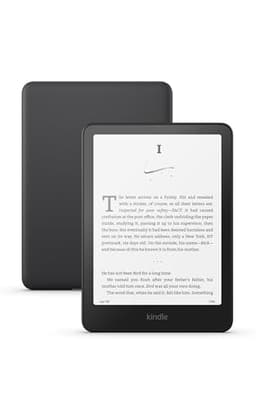
Kindle Paperwhite (newest model)
If you're on a pre-2021 Paperwhite, the current model is the upgrade that unlocks TTS: Assistive Reader works out of the box — pair Bluetooth headphones and any TTS-enabled book reads aloud. It also gets frequent sale pricing, so it's worth checking.
Check price on AmazonAffiliate link — TextToLab may earn a commission at no extra cost to you.
5 Things I Wish I Knew About Kindle TTS
- Check "Text-to-Speech: Enabled" before buying. On the Amazon product page, scroll to "Product details" and look for this flag. If it says "Not Enabled," no TTS method will work on that book (except the screen-reading accessibility workarounds).
- iOS Speak Screen is the best free hack. Two-finger swipe down from the top of the screen. It auto-scrolls and auto-turns pages. Works with any Kindle book regardless of publisher TTS restrictions because it reads the rendered screen, not the file.
- You can improve the free voices. On iOS, go to Settings > Accessibility > Spoken Content > Voices, and download the "Enhanced" voice for your language. It sounds significantly better than the default and costs nothing.
- Whispersync discounts vary wildly. Some books offer the audiobook add-on for $1.99, others charge $7.49+. Check the price before assuming TTS is the cheaper route — sometimes the Audible version is only $2 more. Our Whispersync for Voice guide shows how to find every eligible book in your library at once, and when per-book upgrades beat a membership.
- Library books through Libby are free. If you have a library card, the Libby app gives you free access to ebooks. Borrow the book, open it in the Kindle app, and use Assistive Reader. Zero cost. Heavy readers can run the same trick on Kindle Unlimited's free trial — every KU book with Enhanced Typesetting works with Assistive Reader.
Try Kindle Unlimited Free for 30 Days
Every Kindle Unlimited book with Enhanced Typesetting works with Assistive Reader, and thousands include full audiobook narration at no extra cost — the cheapest way to feed a TTS reading habit. 30 days free, cancel anytime.
Start Kindle Unlimited TrialAffiliate link — TextToLab may earn a commission at no extra cost to you.
Which Method Should You Use?
Just want something free and quick
Use Assistive Reader on the Kindle app. It's built in, costs nothing, and works with most books. If it's not available for your book, fall back to iOS Speak Screen or Android Select to Speak.
Want the best audio experience
Start an Audible trial — new members get their first book free for 30 days, and human narrators still outperform every AI voice for fiction. Already own the ebook? Add Whispersync where available ($1.99-$7.49). For non-fiction narration with ElevenLabs-quality AI voices, see our ElevenLabs pricing breakdown.
Read a lot and want better voices
Try ElevenReader first — 10 free hours a month with better-rated voices costs you nothing to test. If you specifically need your DRM-locked Kindle library inside the app, Speechify Premium at $139/year is the only app that does that — check whether the free tier meets your needs first.
Want to create actual audiobook files from ebooks
Different use case entirely. You need a TTS creation tool, not a reading app. Check our audiobook TTS comparison or the full pricing breakdown across 11 services.
My Recommendation
Start with Assistive Reader. It's free, built into the Kindle app, and works for most books. Give it a week. If the voice quality drives you crazy (it's tolerable for non-fiction, painful for fiction), the upgrade order is: an Audible trial for the fiction you care most about (the trial book is free and yours to keep), ElevenReader free tier for anything DRM-free, and Speechify only if you need your DRM-locked Kindle purchases inside one app — see our full Speechify pricing breakdown before committing to $139/year.
The biggest mistake I see people make is paying per book for audio on books they already own as ebooks. Whispersync discounts aren't always cheap — at $7.49/book for 3-4 books a month, you're spending $270-$360/year. A reading app subscription (or the free Assistive Reader) covers your entire library at a flat cost.
For more on the TTS landscape, browse our best text-to-speech services or compare costs with our TTS cost calculator.
Related Reading
- Kindle vs Kindle Paperwhite — which model to buy, and how read-aloud differs between them
- Does Kindle Read to You? — the quick yes/no answer by device, and Assistive Reader vs VoiceView explained
- Kindle vs Audible — the full cost math on reading vs listening, and when each one wins
- Best E-Readers With Text-to-Speech — which devices actually read aloud (Kindle vs Kobo vs Boox), with 2026 prices
- Best Apps That Read Books Aloud — 7 reading apps ranked by voice quality and price, beyond just Kindle
- How to Read a PDF Aloud (Free) — every built-in method for desktop, iPhone and Android, plus the best free app
- 7 Speechify Alternatives — cheaper and free reading apps compared, including ElevenReader and Voice Dream
- Best TTS for Audiobooks — 7 AI narrators ranked for long-form listening
- ElevenLabs in 2026 — the ElevenReader launch, 200K audiobooks at $11/month, and what it means for readers
- Google Docs Text to Speech — 4 ways to have documents read aloud, including extensions that work with Kindle Cloud Reader
- Open-Source TTS Comparison — free models you can run locally for unlimited ebook narration
By TextToLab Research Team · Device compatibility verified May 2026 against Amazon Assistive Reader documentation.
As an Amazon Associate, TextToLab earns from qualifying purchases. Some links on this page are affiliate links — they cost you nothing and help fund our independent testing.